Print with perfect color accuracy from a free software!
Great news for our customers in the sublimation printing business! A new free graphics software: Affinity just arrived, which – among other great functions – can manage our unique ICC color profiles! Why is it better than other free softwares you may know? Find out in our blog post and related video!
Why do color profiles matter?
If you are in the dye-sublimation printing business, you know that color accuracy is essential for professional production. It is a must, as your customers expect the color on the finished product to be the exact same as the color they see on their monitor. To do this, you will need a graphics software and the right ICC color profile.

Color accuracy with no compromises!
We've been creating professional color profiles perfectly tailored for the print&ink sets on our shop for the last 15 years, which we provide to all our customers for free. Now we brought great news about graphic softwares for those who use free alternatives such as Canva or Inkscape instead of professional but pricey ones like Corel or Adobe. You may have experienced that while Corel and Adobe programs have color management options enabling you to set the color profile, free softwares don't, or only with problems.
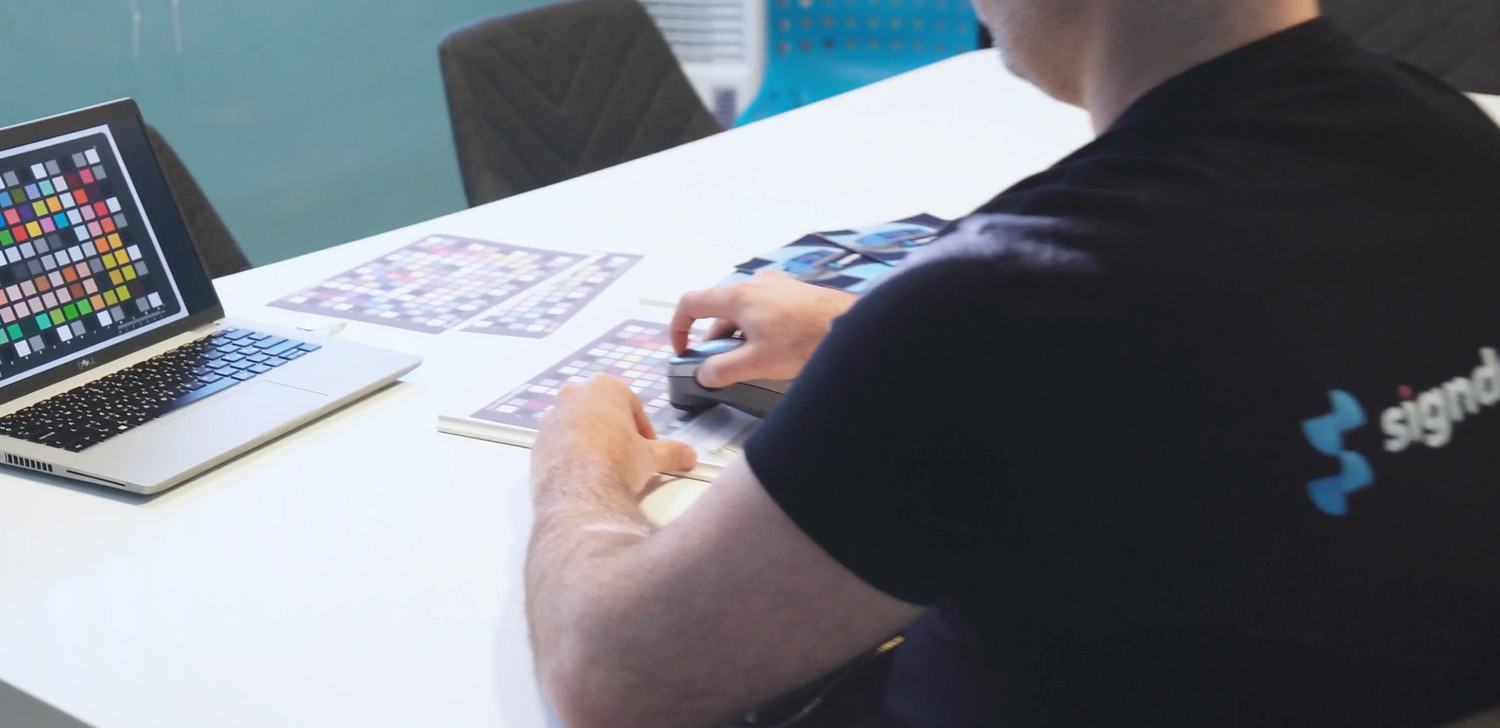
Here's the good news!
You can stop searching, as a brand new software, Affinity became available for completely free in October 2025. Affinity has great advantages over other free software. Besides pixel graphics it can also handle vector graphics. What's even more advantageous for you is that the printer also handles color profiles, so you can print with perfect color accuracy from a free program to your desktop sublimation printer, just like from Photoshop, Illustrator or Corel.
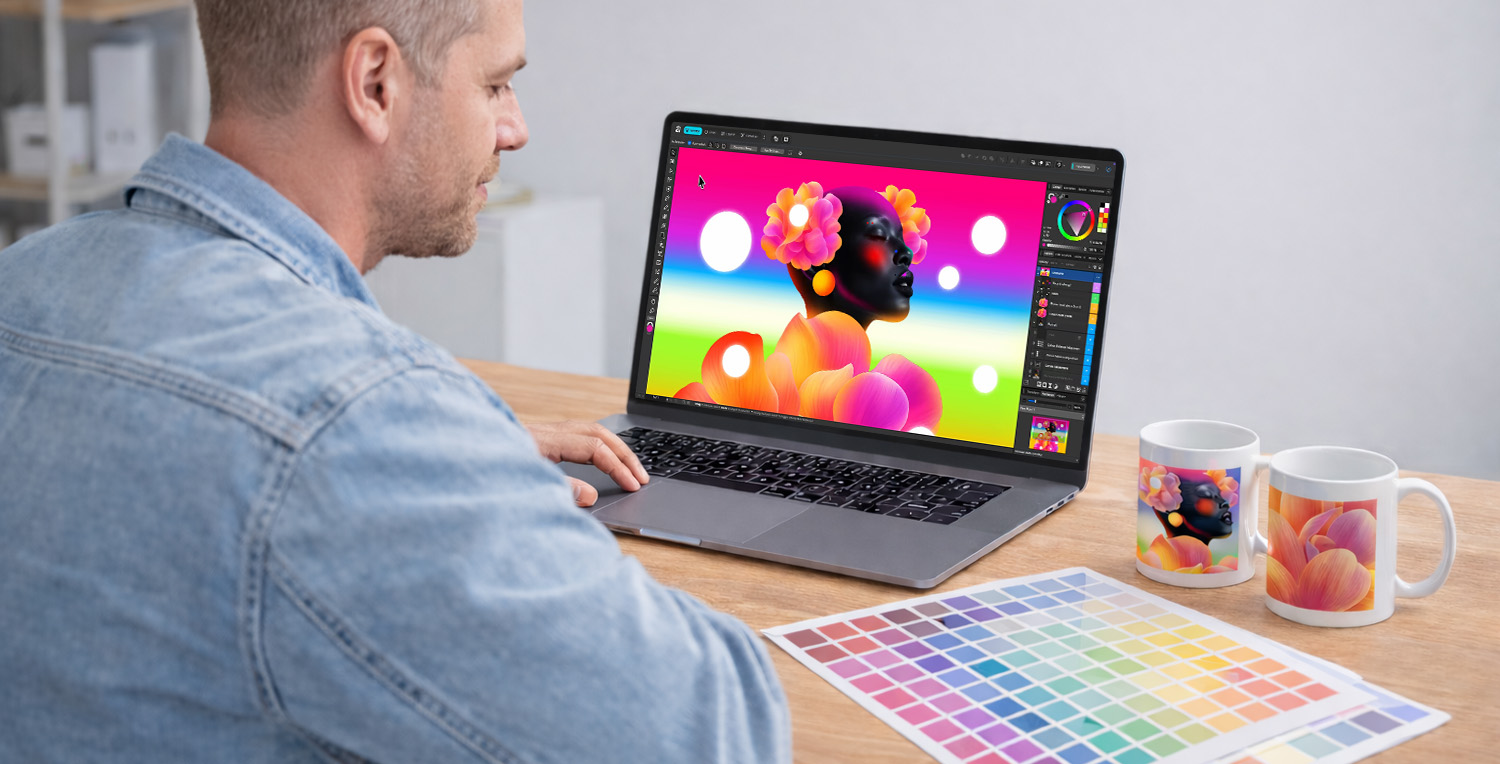
Let's take a closer look at the software!
How to set a color profile in Affinity software?
Setting the color profile is very easy and doesn't require expertise. Let's see it step by step!
1. Open Affinity and load the image you want to print.
2. Click “File” menu and select “Print”.
3. In the pop-up print manager window, click the “Properties...” button next to the printer name.
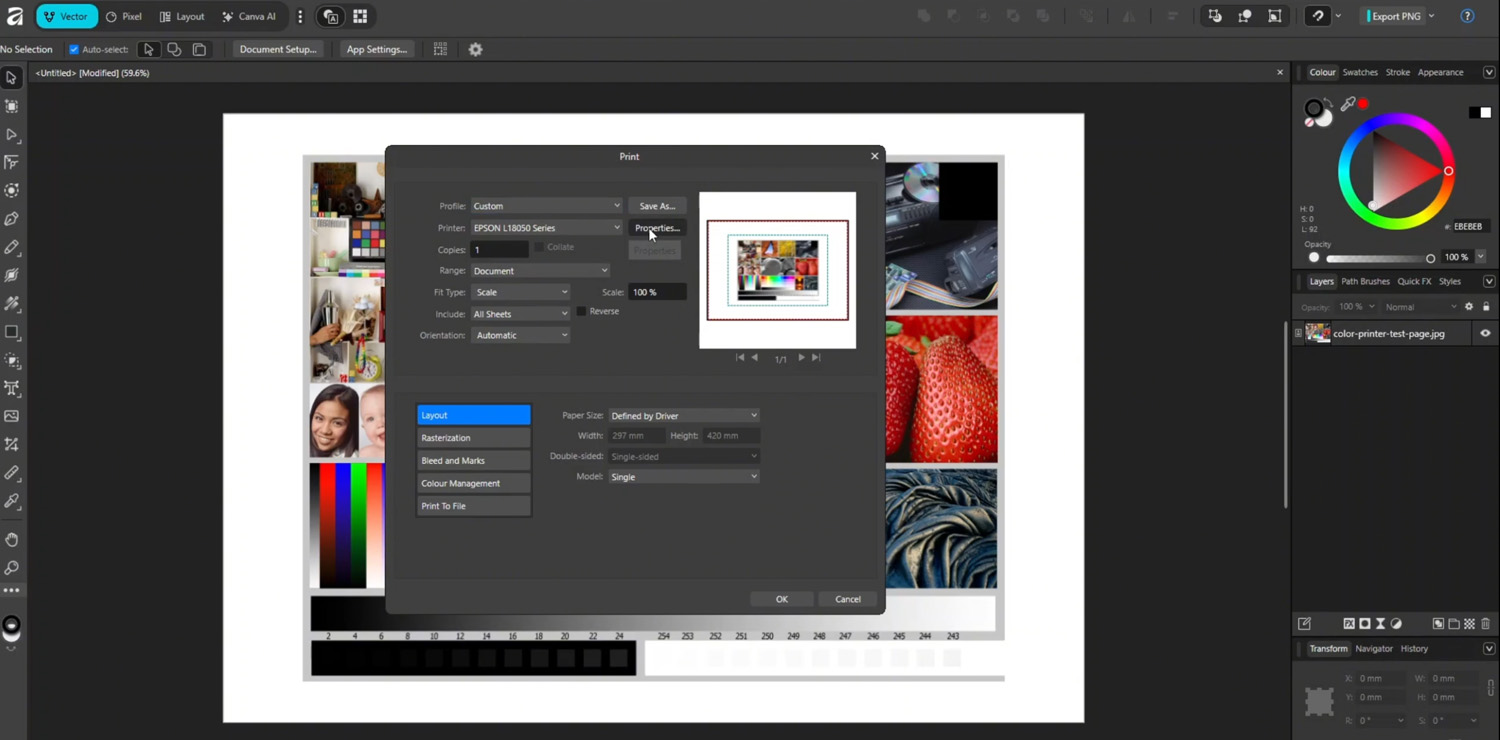
4. In the printer dialog box, select the right “Paper Type” and “Quality” for your printer and ink.
5. After clicking “OK”, you are returned to the original dialog box. Click on “Color Management” at the bottom.
6. Select the color profile (eg. “Signdepot-InkTec L18050-L8050-v1-HARD”) in the second row (“Printer Profile”) of the column appearing on the right.
7. Leave the settings unchanged in the first and third lines (“Color Handling: Performed by App”; “Rendering Intent: Perceptual”) and click “OK”.
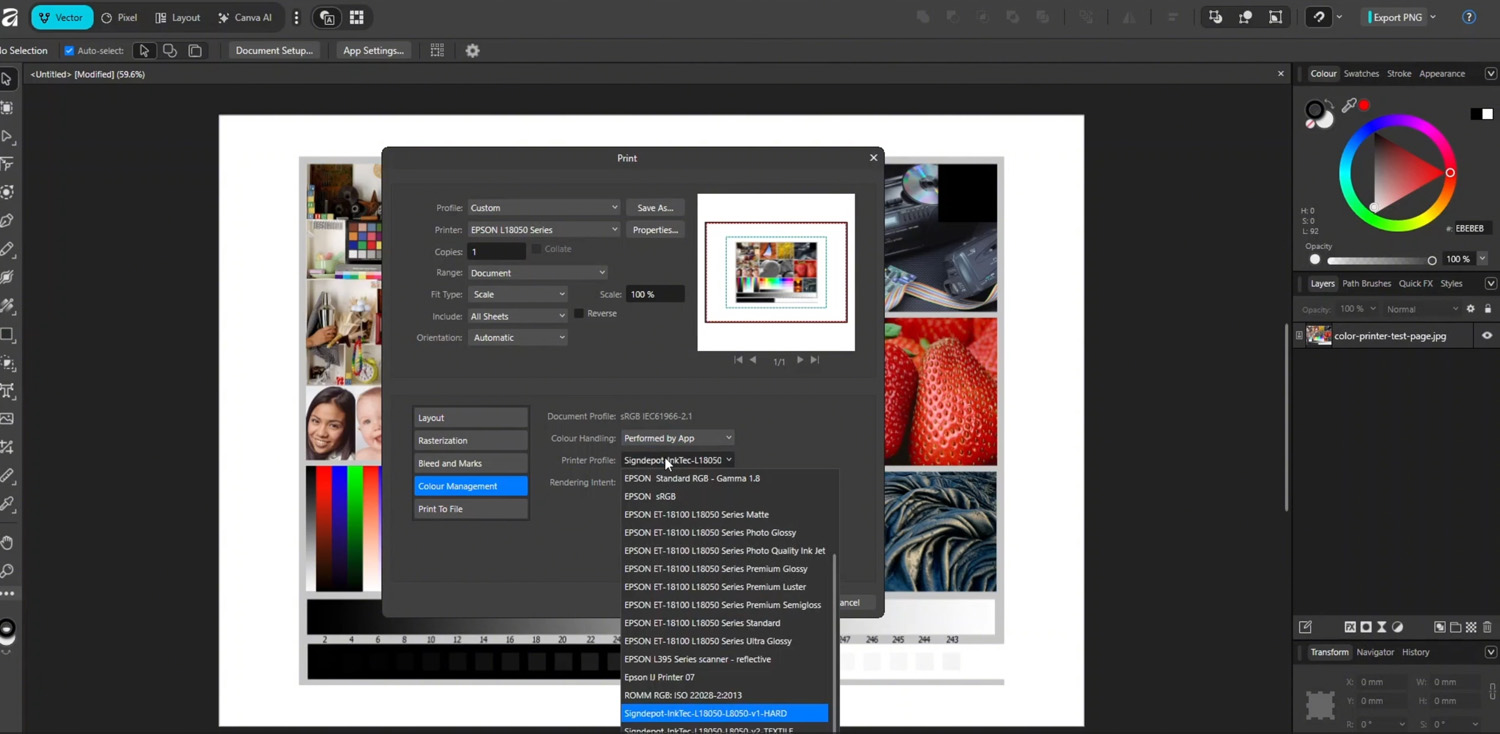
It's that easy: a few clicks to print with perfect color accuracy with your sublimation printer.
► Looking for personalized gift production? Check out our sublimation products!